 By Owen Palmer
Updated November 2026
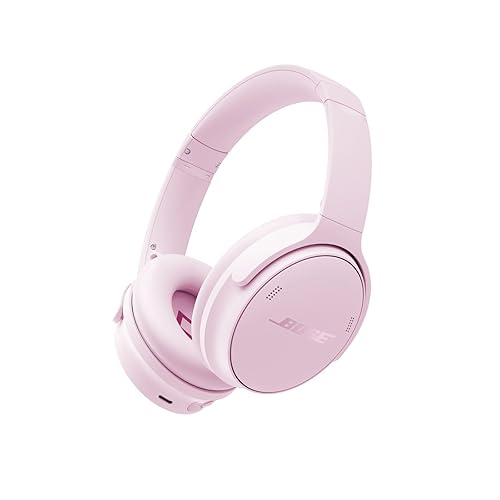
To connect Bose Bluetooth headphones, you put the headphones into pairing mode, then select them from the Bluetooth menu on your phone, laptop, or other device. Most Bose models enter pairing mode when you hold the Bluetooth button or power button until a voice prompt or light signals that the headphones are discoverable. This guide walks through the full process, covers the most common reasons pairing fails, and explains how to reconnect to a device you have used before.
Before You Start: What You Need
Pairing goes faster when you have everything ready. Check these items before you begin:
Shopping for one? See our guide: Beats by Dre Headphones vs Bose: Which Should You Choose? (2026).
- Your Bose headphones, fully charged or connected to power for at least 10 minutes.
- The device you want to pair with, such as a smartphone, tablet, laptop, or TV.
- Bluetooth turned on for that device, and the device running a reasonably current operating system.
- The Bose Music app installed, if you want to update firmware or change settings. It is useful but not required for basic pairing.
- The headphones kept within about 3 feet of the device during setup.
How to Connect Bose Bluetooth Headphones to a Phone
Pairing a phone is the most common task, and the steps are nearly identical for iPhone and Android.
Step 1: Put the Headphones in Pairing Mode
Turn the headphones off first. Then press and hold the Bluetooth button (on many over-ear models, this is the power button itself) until you hear a tone or a voice prompt saying the headphones are ready to pair. On some models the status light will flash blue or white. Model designs differ, so if you are unsure, check the quick start guide included in the box or on Bose’s support site.
Step 2: Open Bluetooth Settings on Your Phone
On an iPhone, go to Settings, then Bluetooth, and make sure the toggle is on. On an Android phone, go to Settings, then Connected devices or Bluetooth, depending on your manufacturer’s menu layout. The phone will begin scanning for nearby devices.
Step 3: Select Your Bose Headphones
Your headphones should appear under available devices with the model name, such as the QuietComfort or 700 series. Tap the name. The phone will ask you to confirm or will connect automatically. You will typically hear a confirmation tone, and the headphones’ status light will become steady.
Step 4: Confirm the Connection
Play a short audio clip. Check that sound comes through the headphones and not the phone speaker. You can also look at the Bluetooth menu, where the headphones should show as “Connected” beneath their name.
How to Connect Bose Headphones to a Laptop or Computer
Windows and macOS both support Bluetooth audio, but the menu paths differ.
- Put the headphones into pairing mode as described above.
- On Windows, open Settings, then Bluetooth and devices, then Add device, then Bluetooth. On a Mac, open System Settings, then Bluetooth.
- Select your Bose headphones from the list of nearby devices.
- After connecting, open the sound settings on your computer and choose the Bose headphones as the output device. This step is often missed. If audio still plays through your speakers, the output selection is the likely cause.
How to Connect Bose Headphones to a TV or Other Device
Many TVs and streaming devices support Bluetooth audio, though not all do. Look for a Bluetooth audio or accessories menu in the TV’s settings. Pairing steps follow the same pattern: enable pairing on the headphones, scan from the TV, and select the headphones. Latency can be noticeable on some TVs, so lip sync may drift. If that happens, look for an audio delay setting on the TV or consider a dedicated transmitter. Our guide to a Bluetooth Transmitter for Bose Headphones: Step-by-Step Setup Guide covers that option in detail.
Reconnecting to a Device You Have Used Before
Once paired, Bose headphones usually reconnect automatically when you turn them on near a previously paired device. If they do not, check these points:
- Bluetooth is enabled on the device.
- The headphones are not still connected to another device. Bose headphones can hold connections to two devices at once on many models, but a third device can block automatic reconnection.
- The device is within range, typically about 30 feet in an open space and less through walls.
If the headphones keep dropping, the cause could be interference, battery level, or a firmware issue. Our article on Why Bluetooth Headphones Keep Disconnecting explains the most frequent causes and fixes.
Troubleshooting Pairing Problems
When pairing fails, work through these steps in order rather than trying random fixes.
Forget the Old Pairing
If the headphones were previously paired to the same device, remove them from the Bluetooth list on that device, then pair again from scratch. A stale pairing record is one of the most common causes of failure.
Reset the Headphones
Each Bose model has its own reset procedure, usually involving holding the power and Bluetooth buttons together for several seconds. Check the official manual for your exact model before doing this, since reset steps vary. A reset clears all saved pairings, so you will need to pair every device again.
Update the Firmware
Connect the headphones to the Bose Music app and check for firmware updates. Outdated firmware can cause compatibility problems with newer phones and operating systems.
Compare Common Symptoms and Likely Causes
| Symptom | Likely cause | What to try |
|---|---|---|
| Headphones do not appear in the device list | Not in pairing mode | Hold the button until the prompt sounds, then rescan |
| Connects but no sound | Wrong output device selected | Choose the headphones in the device’s audio output menu |
| Connects, then drops often | Distance, interference, or low battery | Move closer, charge fully, reduce nearby wireless sources |
| Will not reconnect to a known device | Stale pairing or second device holding the link | Forget the device on both sides and pair again |
| Audio stutters during video | Bluetooth latency | Check for an audio delay setting or use a lower-latency connection |
Common Mistakes to Avoid
- Pairing in the wrong mode. Holding the button too briefly or too long can skip pairing mode entirely. Wait for the voice prompt or light before you release.
- Forgetting the output setting. Connected does not always mean the headphones are the active audio output.
- Keeping old pairings around. Removing outdated device entries keeps automatic reconnection predictable.
- Ignoring firmware. Small updates often fix stability issues that look like hardware faults.
- Assuming every Bose model works the same. Buttons, reset steps, and multipoint behavior differ between product lines. Check your model’s manual.
Tips for a Stable Connection
- Charge the headphones before long sessions. Low battery can cause weaker signal and dropouts.
- Keep the headphones and device in the same room when possible, and away from microwave ovens and crowded wireless networks.
- If you use two devices regularly, enable multipoint if your model supports it, so you can switch without repairing.
- Compare your model’s features before buying accessories. For example, Bose vs Apple Headphones (2026): Which Is Better for Your Daily Use? helps if you are weighing ecosystem integration.
Recommended gear
A few accessories can make setup and daily use smoother. Pick based on how you plan to use the headphones.
- A Bluetooth transmitter helps when you want to connect headphones to a TV or airplane entertainment system that lacks Bluetooth audio. It is useful for older devices that cannot pair directly. View on Amazon
- A protective carrying case keeps the headphones safe when traveling and prevents the controls from being pressed accidentally in a bag. View on Amazon
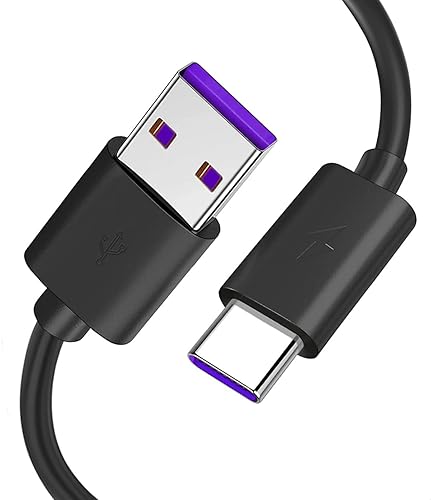
- A USB-C charging cable with a known-good rating can help if your headphones charge slowly or intermittently with a worn cable. View on Amazon
FAQ
Why won’t my Bose headphones show up in Bluetooth settings?
The headphones are probably not in pairing mode. Turn them off, then hold the Bluetooth or power button until you hear the pairing prompt or see the status light flash, then scan again from your device.
Can Bose headphones connect to two devices at once?
Many current Bose models support multipoint, which allows connection to two devices at the same time. Support varies by model, so check the specifications for your exact headphones.
How do I reset my Bose Bluetooth headphones?
Reset procedures differ by model. Generally you hold specific buttons together for several seconds, then wait for a tone or light. Consult the manual for your model, since using the wrong sequence will not clear the pairings.
Why do my headphones connect but play no sound?
The most common cause is that your device is still sending audio to its built-in speakers. Open the sound output settings and select the Bose headphones.
Does distance affect Bluetooth connection?
Yes. Bluetooth typically works best within roughly 30 feet in open space. Walls, metal objects, and the human body all reduce range, so keep the device close for stable audio.
Why do my headphones keep disconnecting?
Common causes include low battery, interference from other wireless devices, distance, and outdated firmware. Updating firmware and moving closer to the source often resolves the problem.
Do I need the Bose Music app to connect the headphones?
No. Basic pairing works without the app. The app is helpful for firmware updates, settings changes, and some model-specific controls.
Conclusion
Connecting Bose Bluetooth headphones is usually a matter of entering pairing mode, selecting the headphones from your device’s Bluetooth list, and confirming the audio output. When problems appear, remove old pairings, check the output setting, update firmware, and reset only if the simpler steps fail. Keeping the headphones charged and within range will prevent most future disconnections.
Related reading
- Sony Versus Bose Noise Cancelling Headphones: Which Fits You Best (2026)
- Headphones Bose Black Friday: How to Spot Real Deals on Bose Headphones
Ready to choose one?
About Owen Palmer
Owen Palmer is part of our editorial team and reviews and edits our brand headphones & noise cancelling guides, checking product details against manufacturer specifications and owner feedback.