 By Owen Palmer
Updated November 2026
To pair Bose headphones to iPhone, you put the headphones into pairing mode, open Bluetooth settings on your iPhone, and select your headphones from the list of available devices. Once they connect, iOS usually remembers them and reconnects automatically whenever they are turned on nearby. This guide walks through each step, explains how to handle the pairing button differences across Bose models, and covers the fixes that solve most connection problems.
What You Need Before You Start
Pairing is quick, but a few preparations prevent most of the frustration people report. Gather these before you begin:
Shopping for one? See our guide: Beats by Dre Headphones vs Bose: Which Should You Choose? (2026).
- A charged iPhone running a current version of iOS with Bluetooth turned on.
- Bose headphones with at least some battery charge. Manufacturers generally recommend a charge of at least 20 percent for reliable pairing, though a full charge avoids interruptions.
- The headphones’ charging cable or case, in case you need to reset them.
- The Bose app (optional, but useful for firmware updates and custom settings).
- Any other Bluetooth devices, such as a laptop or tablet, disconnected or turned off so they do not grab the headphones during setup.
How to Pair Bose Headphones to iPhone Step by Step
The general process is the same across most Bose wireless models, although the button you press to enter pairing mode varies. Follow these steps in order.
Step 1: Put the Headphones Into Pairing Mode
Turn the headphones off first. Then press and hold the Bluetooth button (on many models it is the button marked with the Bluetooth symbol or the power button itself) until you hear a voice prompt or tone indicating pairing mode. On many over-ear and on-ear models, the status light flashes blue or white while the headphones search for a device. Manufacturers typically describe this as a hold of several seconds, so keep holding until you hear the prompt.
If your model has a dedicated Bluetooth button, you will usually press it rather than the power switch. Check the printed label or the quick start guide included with your headphones if you are unsure.
Step 2: Open Bluetooth Settings on iPhone
On your iPhone, open Settings, tap Bluetooth, and make sure the toggle is on. Keep this screen open. iOS will scan for nearby devices and list anything in pairing mode under Other Devices.
Step 3: Select Your Bose Headphones
Tap the name of your headphones in the list. The name usually starts with “Bose,” followed by the model name, such as “Bose QuietComfort.” If you see more than one entry with similar names, it may be a left-over listing from a previous pairing attempt. Choose the one that matches your model and wait a few seconds.
When the connection succeeds, the status shows “Connected” beneath the name, and you will hear a voice prompt from the headphones confirming the connection.
Step 4: Confirm the Connection
Play a song or video to test the audio. You can also open Control Center and check the audio output icon, which should show your Bose headphones as the active output. If sound comes from the iPhone speaker, tap the audio icon and select the headphones manually.
Step 5: Set Up Optional Features in the Bose App
Download the Bose app from the App Store if you want firmware updates, noise cancelling mode controls, or custom EQ settings. Sign in or create an account when prompted, then follow the on-screen instructions to add your headphones. Firmware updates can improve pairing stability, so it is worth checking for one right after setup.
How Pairing Works Across Different Bose Models
Bose uses similar Bluetooth technology across its lineup, but button layouts and pairing gestures differ. The table below summarizes common patterns. Always verify against your own quick start guide, since specific models may vary.
| Headphone Type | Typical Pairing Method | Indicator Behavior |
|---|---|---|
| Over-ear with Bluetooth button (e.g., QuietComfort series) | Press and hold the Bluetooth button until a voice prompt sounds | Status light flashes while searching |
| On-ear or older over-ear models | Hold the power button for several seconds until pairing prompt | Light blinks blue or white |
| Earbuds with charging case | Open the case and hold the button on the case or earbuds | Earbud indicator flashes during pairing |
If your Bose model supports multipoint, you can keep it paired with your iPhone and a second device at the same time. Multipoint settings are often accessed through the Bose app, so check there if you want to switch between devices quickly.
Reconnecting and Managing Your Bose Headphones
After the first pairing, iPhone normally reconnects whenever the headphones are powered on within range. If that does not happen, open Settings > Bluetooth, find your headphones, and tap the information icon. Confirm that Connect Automatically is turned on, if that option appears.
To forget your headphones and start over, tap the information icon next to the device and choose Forget This Device. Then repeat the pairing steps above. This is the most common fix for stubborn connection problems.
Common Mistakes and Tips
- Pressing the wrong button. Holding the power button when the headphones need the Bluetooth button (or vice versa) is a frequent cause of failed pairing. Check the labels first.
- Pairing while another device is connected. If the headphones are still connected to a laptop or another phone, they may not appear on your iPhone. Disconnect the other device first.
- Leaving old listings in place. Duplicate entries can cause confusion. Forget old versions of the headphones in Bluetooth settings before pairing again.
- Ignoring low battery. Low charge can cause dropouts and failed pairing attempts. Charge the headphones before troubleshooting.
- Forgetting firmware updates. Outdated firmware can cause compatibility issues with newer iOS versions. Update through the Bose app when prompted.
- Keeping iPhone too far away. Bluetooth range is limited, and walls or crowded radio environments can weaken the signal. Stay within a few feet during pairing.
Troubleshooting When Pairing Fails
If your headphones refuse to pair, work through these checks in order. Most issues are resolved in the first two.
- Restart both the iPhone and the headphones.
- Turn Bluetooth off on the iPhone, wait ten seconds, and turn it back on.
- Forget the headphones in iPhone Bluetooth settings, then pair again.
- Reset the headphones to factory settings. The reset method varies by model, so consult the Bose support documentation for your exact headphones.
- Update iOS and the Bose app to their latest versions.
For more detailed fixes, see our guide on How to Fix Bluetooth Headphones That Won’t Pair, which covers issues that apply across many brands. If your headphones connect but the sound is poor or cuts out, Bluetooth Transmitter for Bose Headphones: Step-by-Step Setup Guide explains alternative connection methods that may help in specific situations.
Pairing Bose Headphones With iPhone Alongside Other Devices
Many owners use Bose headphones with both an iPhone and a laptop. Manufacturers describe multipoint connection as the way to switch between two sources without re-pairing each time. If you do not have multipoint on your model, you will need to disconnect one device before connecting the other. Turning off Bluetooth on the device you are leaving is usually enough.
If you are comparing Bose with other brands for everyday use, our overview Bose vs Apple Headphones (2026): Which Is Better for Your Daily Use? looks at how these headphones fit into an Apple-centered setup.
Recommended gear
A few accessories can make pairing and daily use smoother, particularly if you switch between devices often.
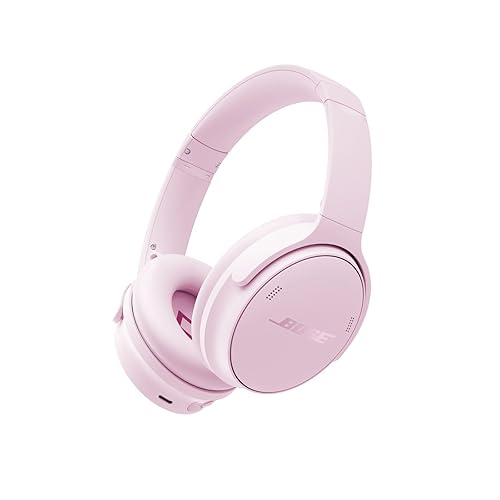
- Bose QuietComfort Headphones. A widely used over-ear model that supports the Bose app for updates and settings, which is useful when troubleshooting pairing. View on Amazon
- Bose QuietComfort Ultra Headphones. A newer over-ear model with multipoint support, helpful if you want to keep the headphones connected to an iPhone and a second device at the same time. View on Amazon
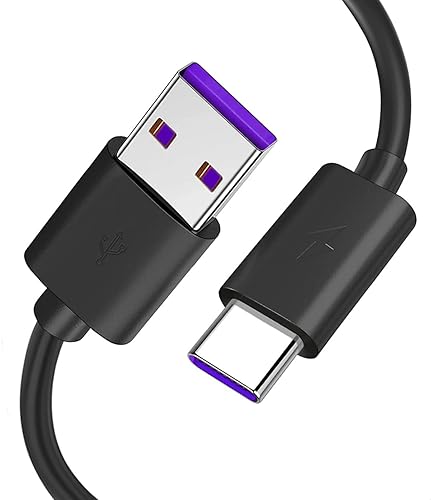
- Apple USB-C to Lightning Cable. Useful for charging Bose headphones that use a USB-C port from the same cable family as many iPhone accessories, keeping charging quick before troubleshooting. View on Amazon
FAQ
Why won’t my Bose headphones show up in iPhone Bluetooth settings?
The headphones are usually not in pairing mode, or they are still connected to another device. Confirm the pairing indicator is flashing, disconnect other Bluetooth devices, and make sure the headphones have enough charge.
Do I need to pair Bose headphones every time I use them with my iPhone?
No. After the first successful pairing, the iPhone normally reconnects automatically when the headphones are turned on nearby. You only need to pair again if you forget the device or reset the headphones.
Can I connect Bose headphones to an iPhone and a laptop at the same time?
Only if your model supports multipoint. Many newer Bose models do, and the feature is typically managed through the Bose app. Without multipoint, you need to disconnect one device before using the other.
How do I reset Bose headphones before pairing again?
Reset methods differ by model. Check your quick start guide or Bose’s official support pages for the exact button sequence for your headphones, then forget the device on your iPhone and pair again.
Why do my Bose headphones keep disconnecting from my iPhone?
Common causes include low battery, distance from the phone, interference from other wireless devices, and outdated firmware. Keep the iPhone close, charge the headphones fully, and update firmware through the Bose app.
Do I need the Bose app to pair with iPhone?
No. Pairing works through iPhone Bluetooth settings alone. The Bose app is optional and provides firmware updates, custom controls, and additional settings.
Can I use Bose headphones with iPhone for calls as well as music?
Yes. Once connected, the headphones act as the audio output for calls, voice assistants, and media. Check the microphone input in iPhone settings if callers report poor audio quality.
Conclusion
Pairing Bose headphones to iPhone takes only a few minutes once you know which button to press and where to look in Bluetooth settings. After the first connection, the headphones should reconnect automatically whenever they are nearby and powered on. If problems persist, forgetting the device, resetting the headphones, and updating firmware solve most issues. Consult Bose’s official support resources for model-specific instructions.
Related reading
- Sony Versus Bose Noise Cancelling Headphones: Which Fits You Best (2026)
- Replace Cushions Bose Headphones: 6 Best Ear Pads Compared (2026)
- Headphones Bose Black Friday: How to Spot Real Deals on Bose Headphones
Ready to choose one?
About Owen Palmer
Owen Palmer is part of our editorial team and reviews and edits our brand headphones & noise cancelling guides, checking product details against manufacturer specifications and owner feedback.